 KUMAKIKAI
Uni:Note Pocket
iPhone
Review your Uni:Note notes on iPhone. A read-only companion that imports your backups.

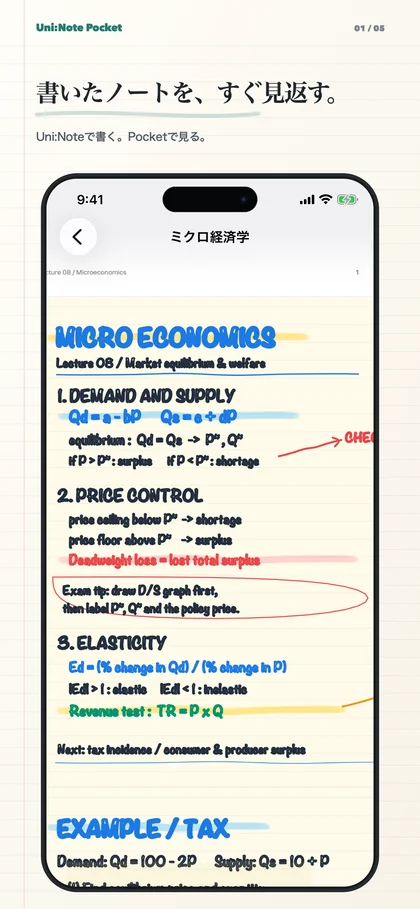
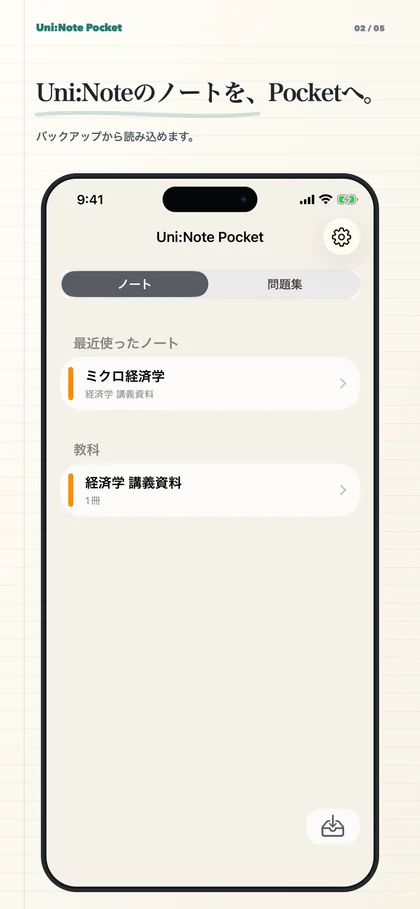
Screenshots show the Japanese version.
Carry your iPad study notes on iPhone.
Uni:Note Pocket is a read-only companion for reviewing Uni:Note notes and practice sets on iPhone. Check your study material during a commute or before class when opening your iPad is inconvenient.
Start by importing a Uni:Note backup. Browse notes by subject, scroll through pages and check practice answers and explanations. Create and edit in Uni:Note; carry and read in Pocket.
Key features
Import a backup
Load a Uni:Note backup ZIP or select an Easy Backup.
Read continuous pages
Scroll vertically through a note and use pinch or double-tap zoom for handwritten details.
Search by title
Find a note by its title or browse your subjects.
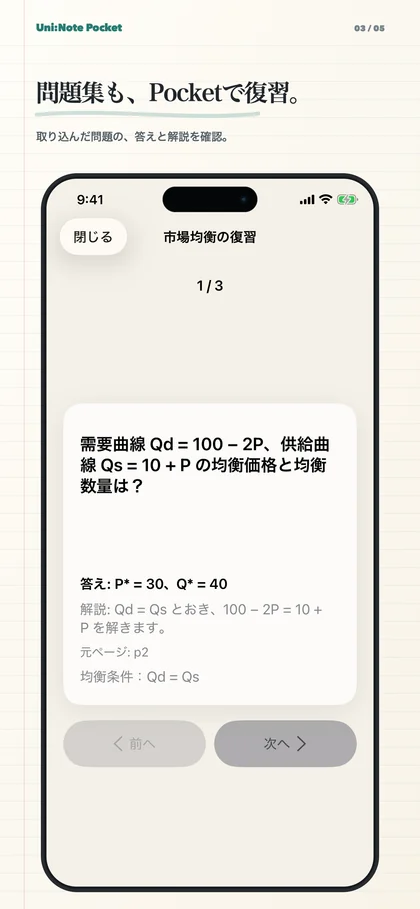
Review questions and markers
Check imported answers and explanations, and tap sticky markers in your notes.
Begin with your Uni:Note backup.
Import a backup prepared in Uni:Note to read your notes and practice sets in Pocket. Import a newer backup when you want to see updated material.
Check an answer in a spare moment.
Practice sets created on iPad can be reviewed on iPhone after import. Read a question, reveal its answer and explanation, and use a short break or commute to revise.
When to use it
On your commute
Read a few pages without taking out your iPad.
Before class
Find your previous notes and refresh your memory.
Before an exam
Check what you remember with imported questions and sticky markers.
Compatibility and essentials
- Devices
- iPhone
- Operating system
- iOS 17.0 or later
- Availability
- Available · App Store
- Requires a Uni:Note backup. Pocket cannot create, edit or delete notes on its own.
- Content reflects the imported backup. It does not automatically sync with Uni:Note.
See the App Store for pricing and in-app purchase details.
Find Uni:Note Pocket on the App Store
Check compatibility and the latest app information.
Support
Guides and support
Find guides and answers to common questions. For further help, include the app name, your device, and what happened in your message.