 KUMAKIKAI
Introduction
Import a Uni:Note backup on iPhone to review notes, sticky markers and question sets. Pocket does not create, edit or sync notes. Tap screenshots to enlarge them.
Requires an iPhone with iOS 17.0 or later and a backup created in Uni:Note on iPad.
Basic use
Import a backup
- Export a backup zip from Uni:Note on iPad to a location accessible in the iPhone Files app.
- Close Pocket’s first-use notice and tap the import icon at the bottom right of Home.
- Choose the zip and wait for validation and import.

Choose the zip without unpacking it. The original backup is not modified. A failed import keeps the previously imported data.
Open a note or search its title
In Notes, select a subject and then a note. Recent Notes opens a recently viewed note directly.
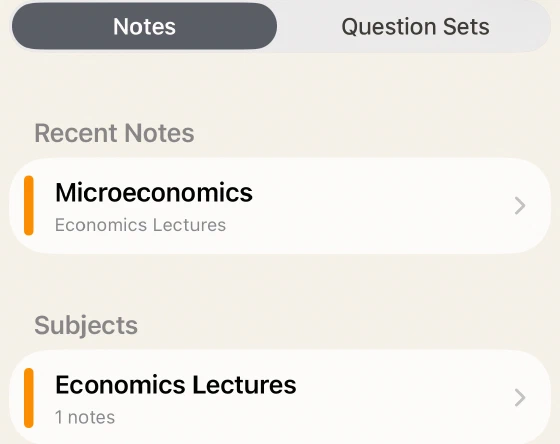
Enter part of the note title in the search field to search across subjects. Handwriting, page text, PDFs and subject names are not searched.

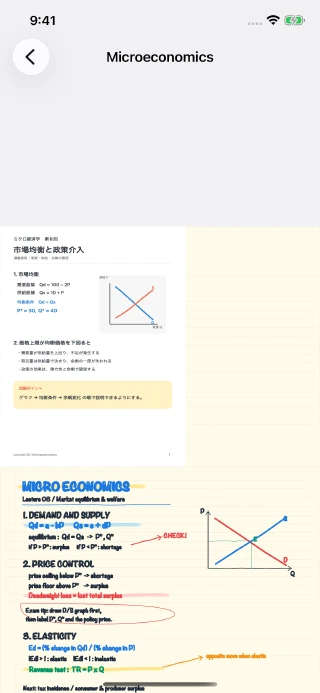
Scroll normal notes vertically and pinch or double-tap to zoom. Vertical notebooks move sideways. Enable Settings → Resume from Last Position to continue from the page you last read.
Review sticky markers and question sets
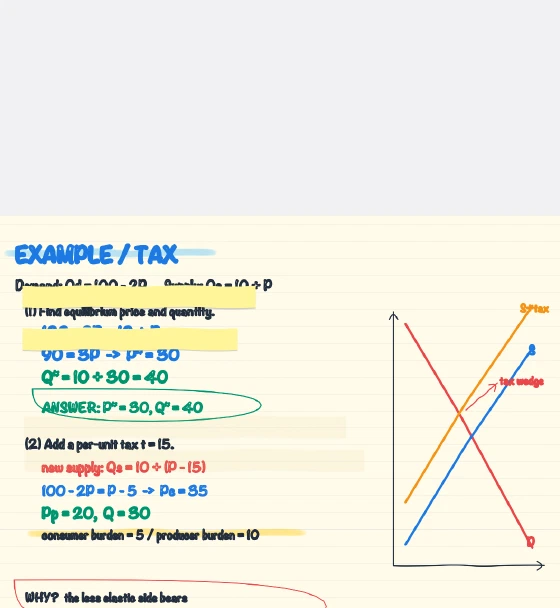
Tap a sticky marker on a page to switch between normal and faint display and check the answer. Create and edit markers in Uni:Note on iPad.
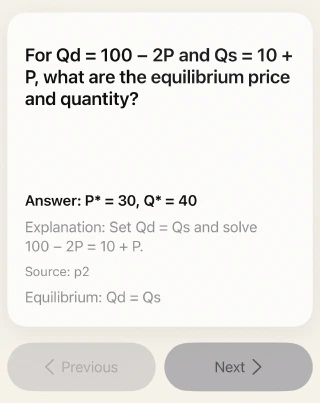
If the backup includes question sets, open Question Sets on Home. Think with the answer hidden, tap to reveal it, and use Previous or Next. Pocket does not generate or edit sets.
Listen to imported recordings
- Open a note that includes recording data.
- Tap Play Recording in the page viewer. If there are several, choose from the recording list.
- Use play/pause, position and playback-speed controls.
Playback is available only when the backup contains the audio files. Record, transcribe and generate AI summaries in Uni:Note on iPad.
Adjust reading settings
Open the gear at the top right of Home. Change the language, theme, resume setting or horizontal-drift prevention. You can label the top level as Subject, Note, Group or Category.
Horizontal-drift prevention helps keep normal vertical reading steady. It does not change the note content.
Load a newer backup
After changing notes on iPad, create a new backup and import it again in Pocket. If Easy Backup is available, open Settings → Easy Backup.
- Tap the refresh icon next to Last Updated to check the iCloud file again.
- Check the date, then tap Load Manually.
- Enable Automatically Load on Launch if you want it loaded when opening Pocket.
The refresh icon checks the file state. If a newer file has not arrived, the date stays unchanged. This is not realtime sync or a write-back to iPad.
Help
For problems with operations or settings, see the checks in FAQ.
Contact
For help with Uni:Note Pocket, use the contact option below.
Describe what you did and any message shown. Do not send passwords, verification codes, or personal text and images that are not needed to resolve the issue.