 KUMAKIKAI
Introduction
Use these real screens to follow the main Uni:Note 3.4.0 operations. Tap an image to enlarge it. Apple Pencil is used for writing; fingers are used for scrolling and moving attachments.
Requires an iPad with iPadOS 17.0 or later. Handwriting uses Apple Pencil. Recording transcription requires a supported environment with iPadOS 26 or later.
Basic use
Create a subject and its first note
- Tap + at the bottom right of Home, then choose New Subject.

- Choose the name, ruling, paper color and cover color.
- Open the subject and name its first note. Leave the name blank to use today’s date.
The same + menu creates folders. Drag subjects into them; deleting a folder returns its subjects to Home. Long-press a subject to edit its name and paper settings.
Choose a tool and write
- Select the pen, highlighter or eraser in the palette.
- Write with Apple Pencil. Pinch with two fingers to zoom.
- Writing on the last page adds the next page automatically.
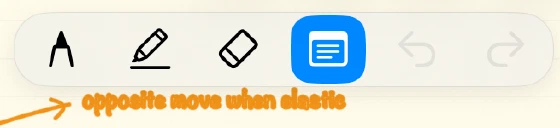
Drag the palette to reposition it. The Ruler button shows a ruler you can move and rotate with your fingers. Draw near it with Apple Pencil for straight lines. Range Move selects whole handwriting strokes; move photos, PDFs and sticky markers separately. Vertical notebooks scroll sideways, and their orientation cannot be changed after creation.
Switch notes and search titles
Type part of a note title in Search note titles on Home and tap a result. Search covers titles, not handwriting, page text, PDFs or subject names.

Inside a note, Note List opens other notes in the subject and lets you create one. Swipe left for rename, protection or deletion. Pages opens thumbnails: tap to navigate, long-press to delete.
Before the 3.5.0 release: a subject-card shortcut to Note List and toolbar/palette customization exist in the local upcoming version. In the published 3.4.0, use the controls inside the note as described above.
Attach photos or PDFs and export
- Open More at the top right of the note.
- Choose a photo, document photo or PDF attachment.
- Select the PDF pages to insert; use the spread-splitting option for facing-page documents.

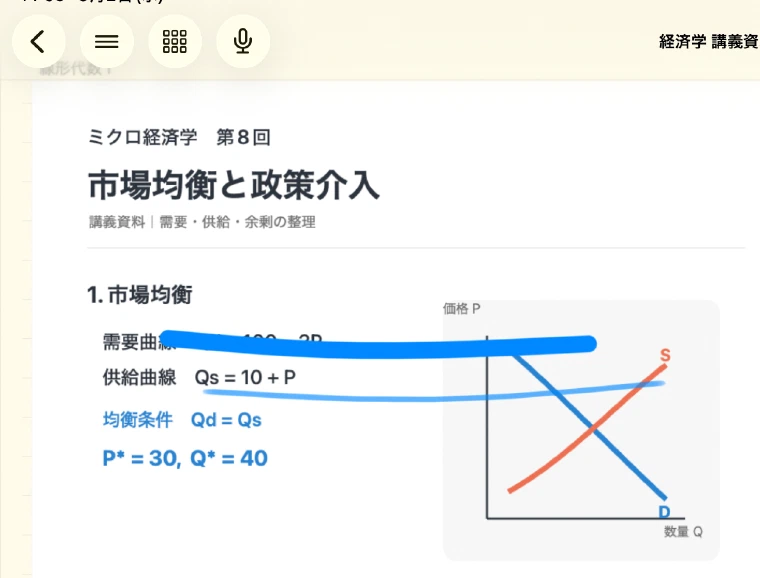
Select an attachment with your finger to move or resize it. Double-tap to lock or unlock it, then write over the document with Apple Pencil. For sharing, choose More → Export PDF, then the current note or the whole subject. Settings lets you use the paper color or white as the PDF background.
Record a lecture
- Tap the microphone above the note.
- Tap the red record button; pause and resume when needed.
- Stop to save, then select the saved recording to play it.

Recording, playback and transcript viewing require Premium. Recordings split after 30 minutes, with up to five per note. Stop and save before returning Home or putting the iPad to sleep. Supported iPadOS 26 devices can transcribe during recording. Set the language in Settings → Study Support → Recording Support. AI summaries use transcript text and AI balance; review the estimated usage before starting.
Review with sticky markers and practice sets
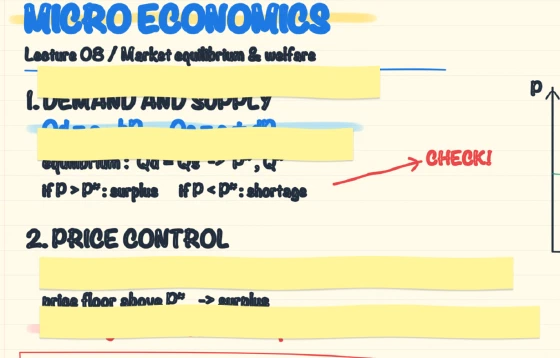
Enable memorization in Study Support settings. Choose the sticky-marker tool, cover text with Apple Pencil, and tap a marker with your finger to reveal or hide it. To delete a marker, long-press it and tap the Delete button that appears.
Enable Problem Solver Assistant, choose its note toolbar button, enclose a problem with Apple Pencil, check the area and request an answer.
To send the result to another app, tap Copy on the left or Share on the right at the upper-right corner of the answer sheet.

For practice sets, choose More → Create Practice Set, select pages, keep or discard candidates and save the set. Open Practice Sets on Home to review it. AI answers and generation use AI balance; check results against your learning materials.
Before the 3.5.0 release: manual set creation, editing saved sets and hiding the Home practice-set switch are upcoming-version operations. Published 3.4.0 supports the generation and review flow above.
Protect, delete and restore
Use Protect in Note List to prevent writing. Settings can require biometric authentication when removing protection.
Restore deleted subjects and notes from Home’s Trash. Deleting a folder keeps its subjects. Deleted pages, practice sets and permanently erased Trash items cannot be restored. Deleting the only page clears its contents instead.
Subjects and notes in Trash are permanently removed during cleanup after 30 days. Restore anything you need before then.
Keep a backup
- Open the gear on Home, then Settings → Backup.
- To listen in Pocket, enable including recording audio before exporting.
- Export a backup and choose its destination.
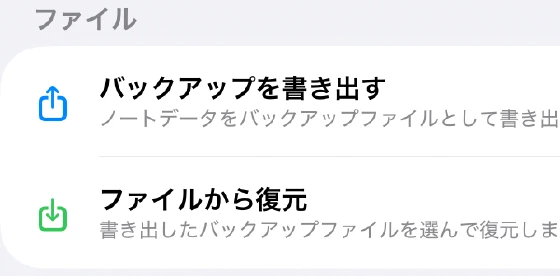
Easy Backup update/restore requires Premium. It saves and loads an iCloud file; it is not automatic note sync. Use Restore from File for a saved zip, then follow the app’s instruction to close and reopen it. Language, left-handed controls and the subject label can also be changed in Settings.
Use two iPad windows
Use iPad window controls to place Uni:Note next to a document or video. You can also open two Uni:Note windows.
Dock gestures and names such as Split View or Slide Over depend on the iPadOS version and window settings.
Help
For problems with operations or settings, see the checks in FAQ.
Contact
For help with Uni:Note, use the contact option below.
Describe what you did and any message shown. Do not send passwords, verification codes, or personal text and images that are not needed to resolve the issue.